Five kinds on the grid
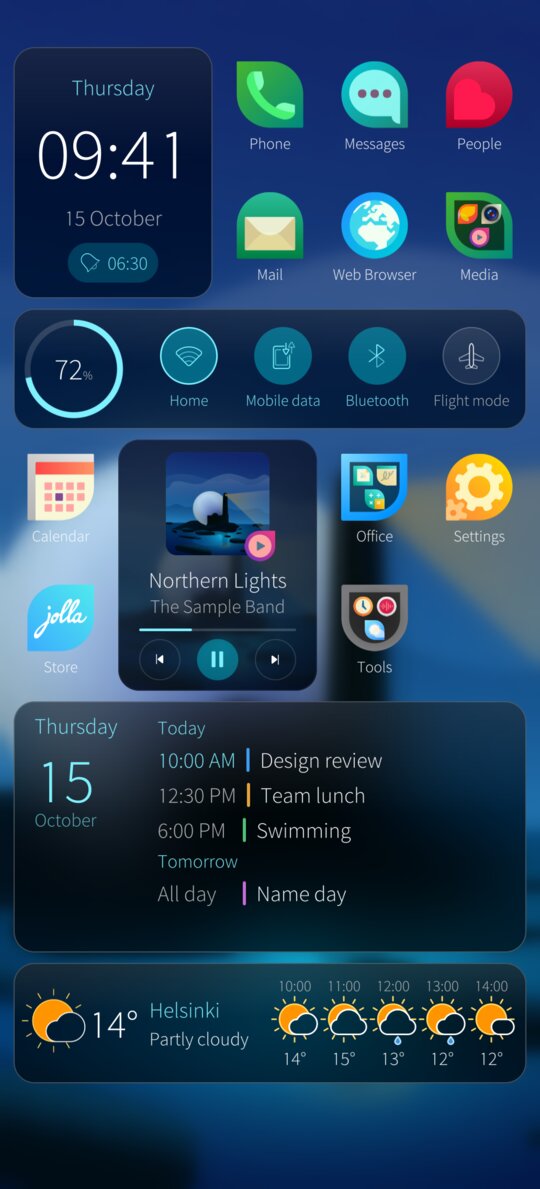
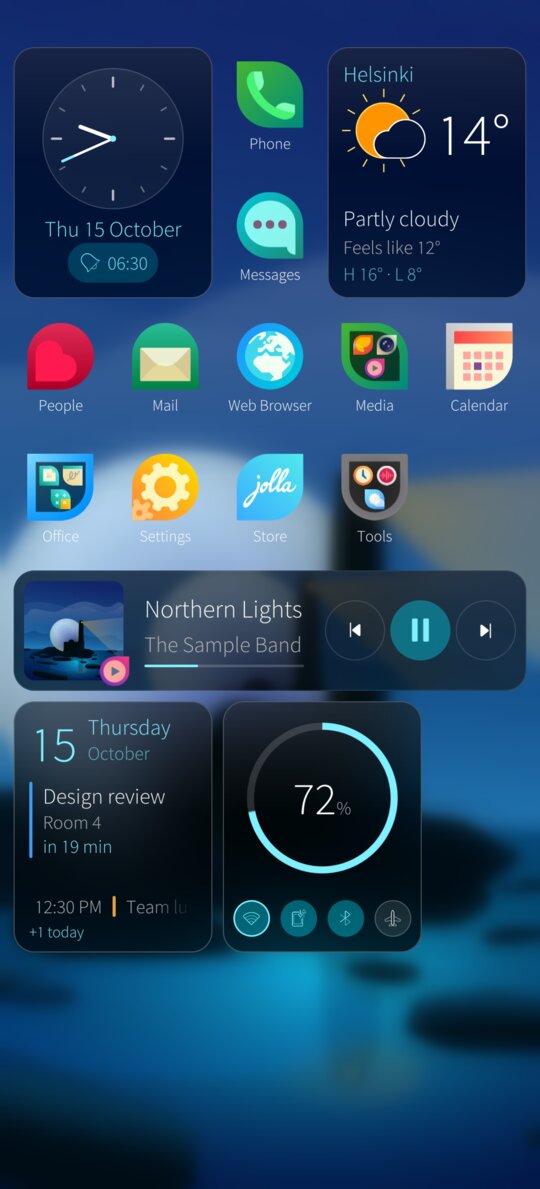
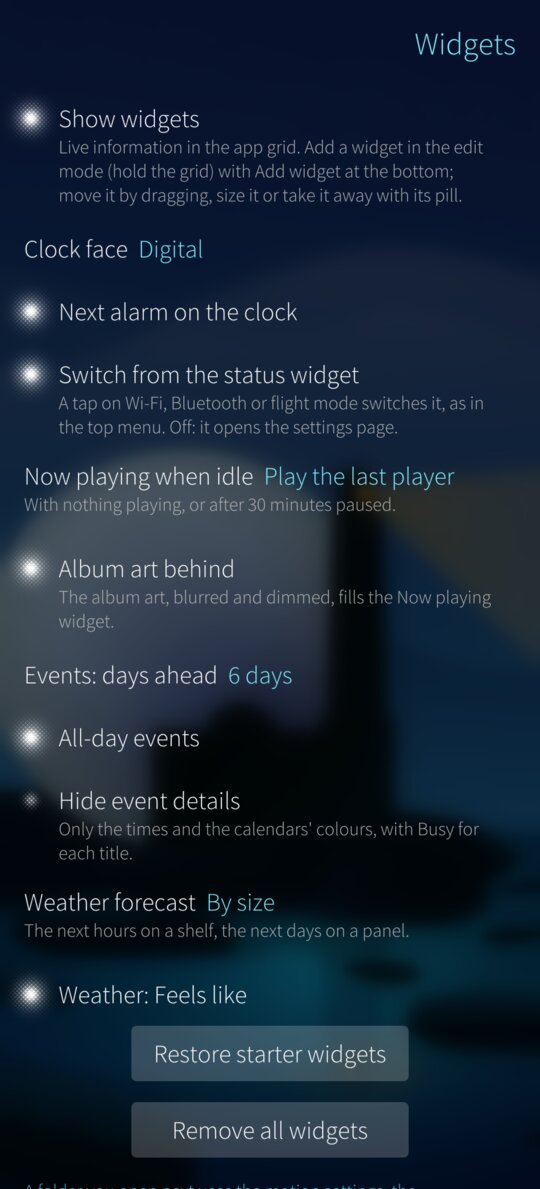
Each is a card of two by two cells or a shelf across the screen, and all but the clock can be a panel of two rows. A fresh install starts with the clock and the status.
 Seaglass
Download 1.1.1
Widgets, glass, app search, notification badges, a richer task switcher and app animations for the Sailfish OS home screen.
Every part is a setting. If Seaglass cannot load, you get the stock home screen.
For Sailfish OS 5.2.0.22, 5.2.0.20 or 5.2.0.18, with Patchmanager 3.2 or newer.
Version 1.1.1 of 21 November 2026: what is new.
Live information as glass blocks among your icons: a clock with the next alarm, the battery and your connections, what is playing, your next events and the weather.
Each is a card of two by two cells or a shelf across the screen, and all but the clock can be a panel of two rows. A fresh install starts with the clock and the status.
In the edit mode, Add widget opens a gallery with a live preview of each size. Tap one, or carry it out and let it go where you want it.

A long press picks a widget up anywhere on it. The icons flow around it as it moves, and it takes its place in the grid's order when you let go.
The pill on a widget in the edit mode makes it a card, a shelf or a panel, or takes it away.

Cards sit next to each other and next to your icons, and the clock has an analogue face.
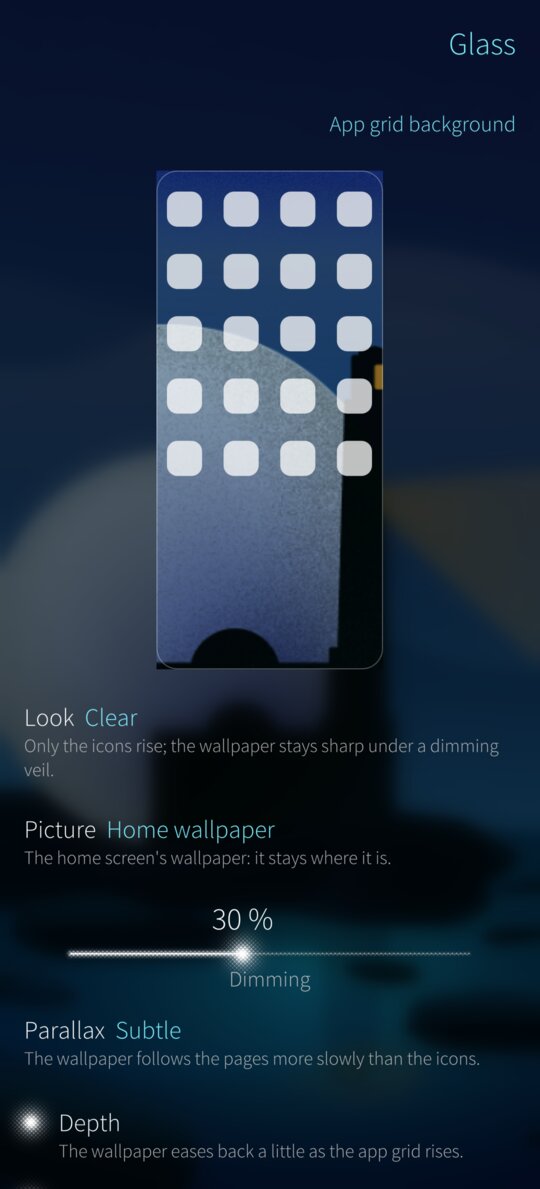
The app grid rises over the home screen's wallpaper, which eases back and follows the pages more slowly than the icons. Folders, open folders and widgets are glass too.
In the clear look only the icons rise, and the picture of another ambience, or a photo from the Gallery, can come up with them. It rises from below and blends into the wallpaper.
In the glass look the wallpaper frosts as the grid comes up.
The Glass page draws the look as you change it: the dimming, the parallax and the depth, and tilt and drift if you want them. Stock keeps the Sailfish background.
An app opens from the icon or the cover you tapped and closes with the swipe from the top, in one of twelve styles. While it starts, its new cover shows the style's loading effect instead of the busy indicator.
Contour, Fold and Halftone are drawn lines, paper folds and printed dots, and light on the phone.
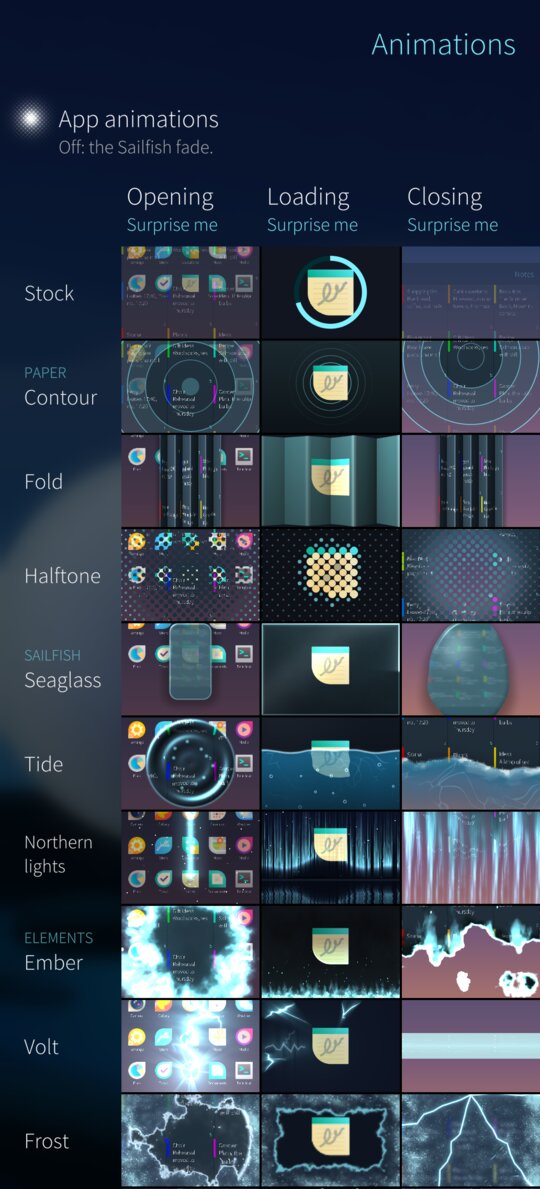
Seaglass rises as frosted glass and sinks as a pebble, Tide spreads the app in a ripple and washes it away, and Northern lights sweeps it in with curtains of aurora.
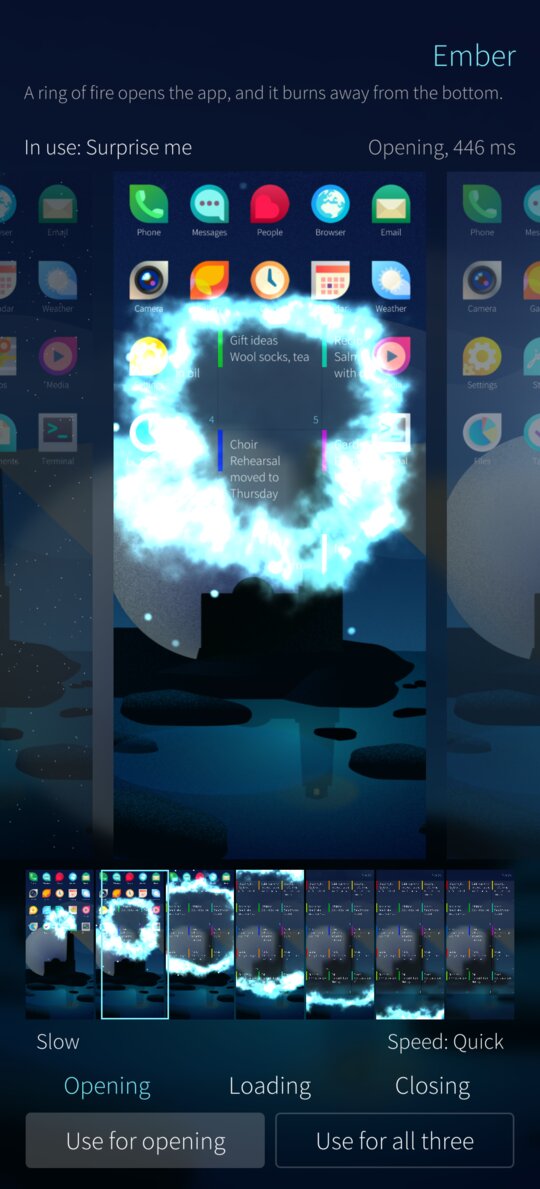
Ember opens an app in a ring of fire and burns it away from the bottom. Volt strikes it with lightning and switches it off like an old TV. Frost thaws it from the icon and freezes it into snow.
With Ambience colours on, the fire, the water and the light take the ambience's highlight colour.
Shatter breaks the window where your finger let go, Singularity pulls it into a black hole, and Dust lets the wind take it.
The Animations page shows each style's opening, loading and closing as still frames. Pick one for all three, or a different one for each. Out of the box Surprise me chooses each time.
A tap plays a style large, with its whole run as a strip you can drag. Nothing changes until you tap Use.
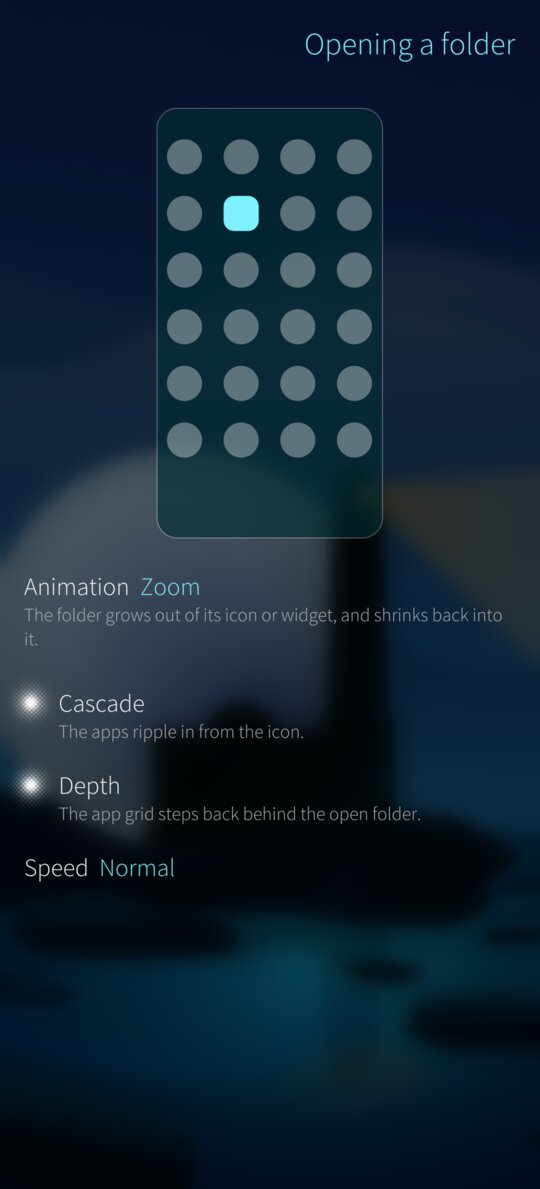
A folder shows small icons of its apps instead of a number, and opens from its icon with a motion of your choice.
Zoom, spring, reveal or slide: a folder opens from its icon onto glass with its apps rippling in, and closes back into it.
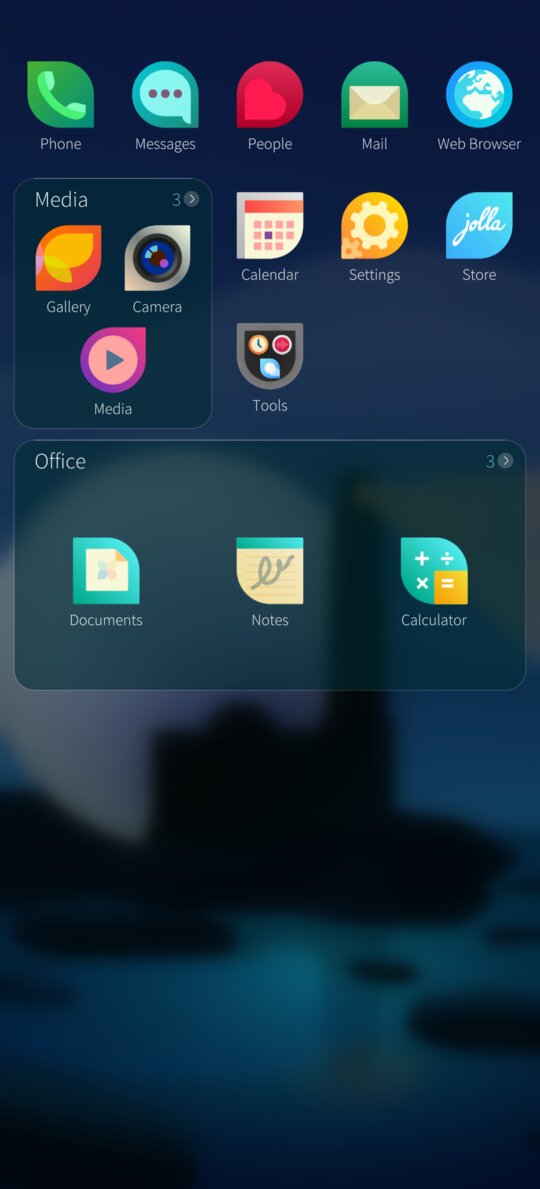
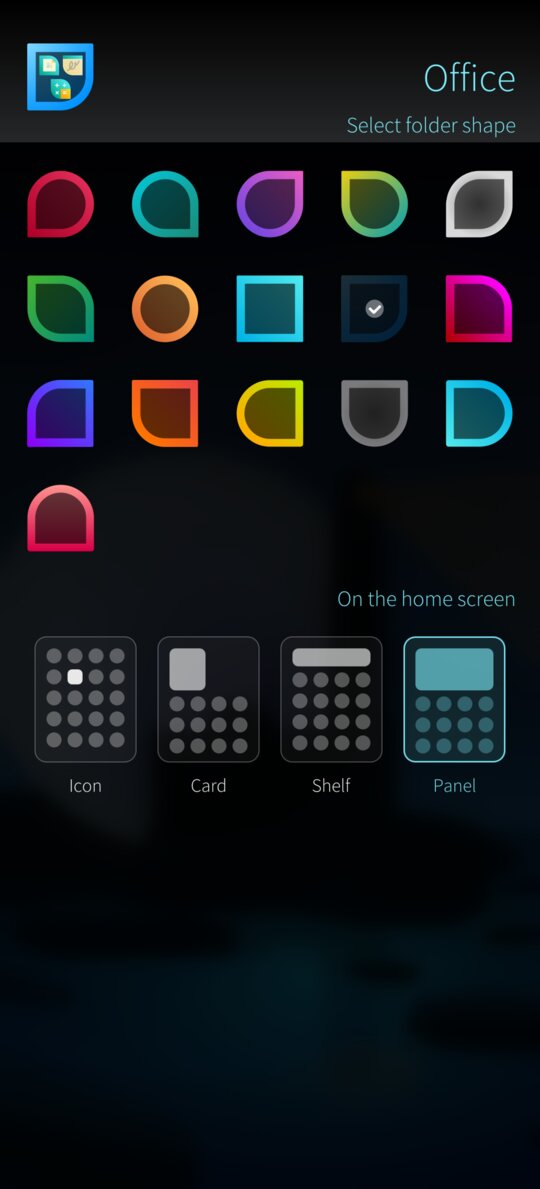
Open a folder out into a card, a shelf or a panel on the grid, and its apps start with one tap. It stays an ordinary folder underneath.
Tap an open folder's icon: under Sailfish's folder shapes, On the home screen offers the icon, the card, the shelf and the panel.
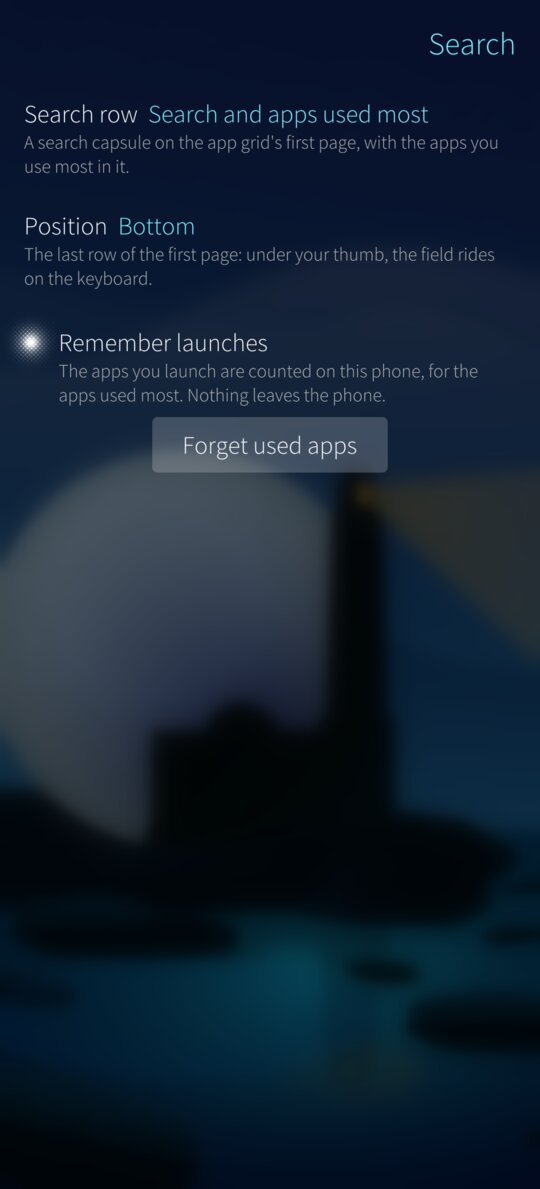
A glass pill on the first page holds the apps you use most, and icons show which apps have something new.
Accents don't matter, and initials and folder names match too. Enter starts the first match.
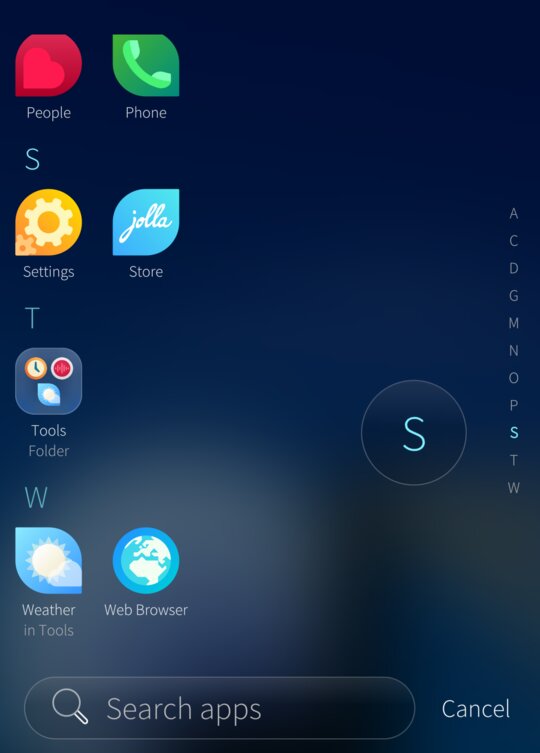
Before you type, the sheet lists the apps you use most and then all of them, with a letter rail to jump along.
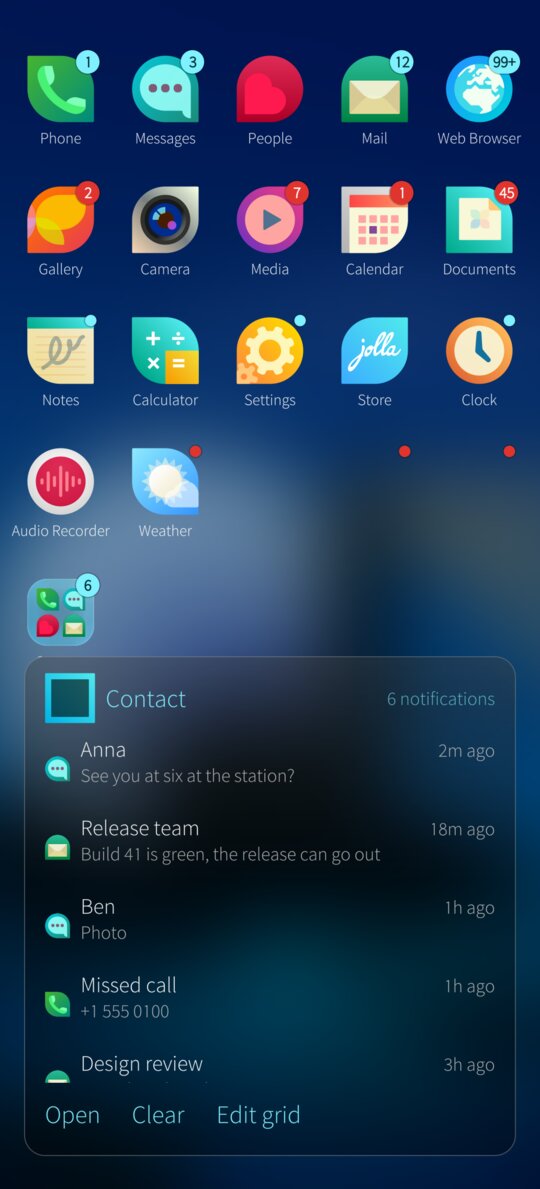
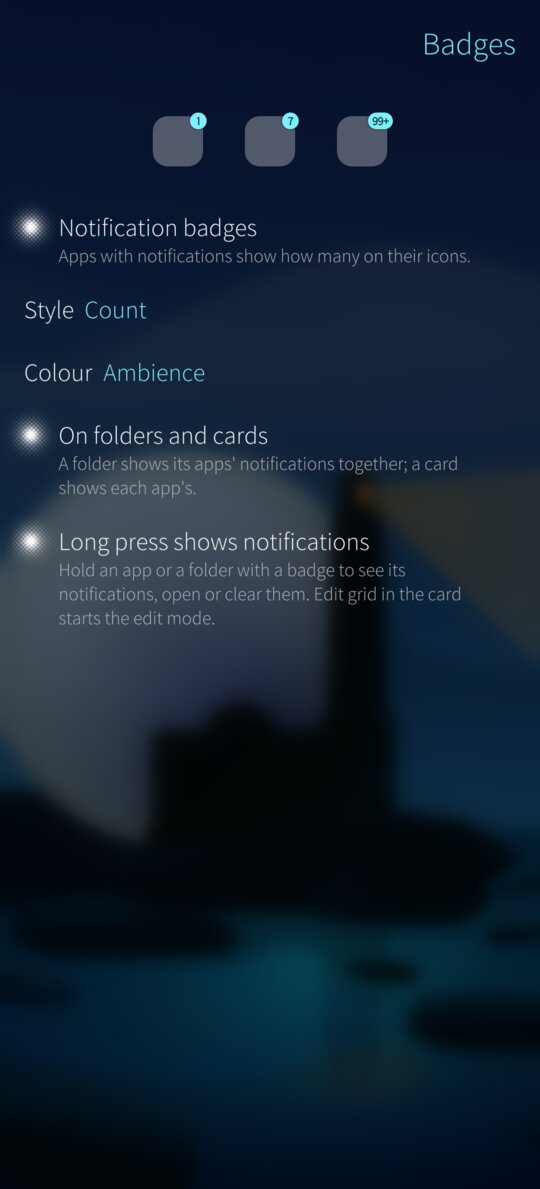
Apps with notifications show how many on their icons, and folders add theirs up. A long press on an app or a folder shows the notifications, to open or clear them.
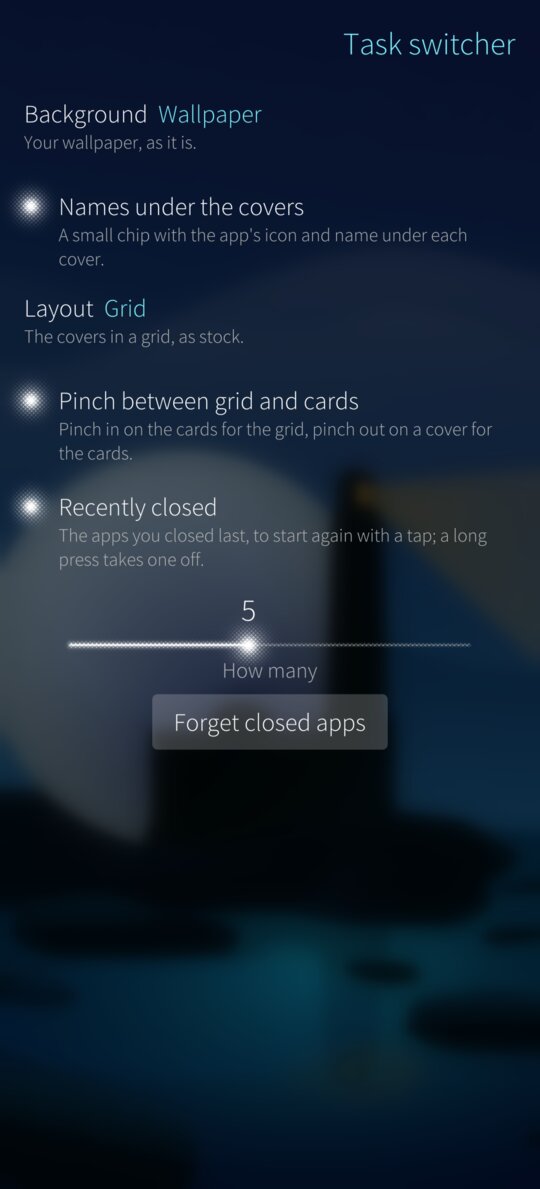
Covers get a chip with their app's icon and name, and the apps you closed last are one tap away.
The chips sit under the covers. The Recently closed capsule starts a closed app again.
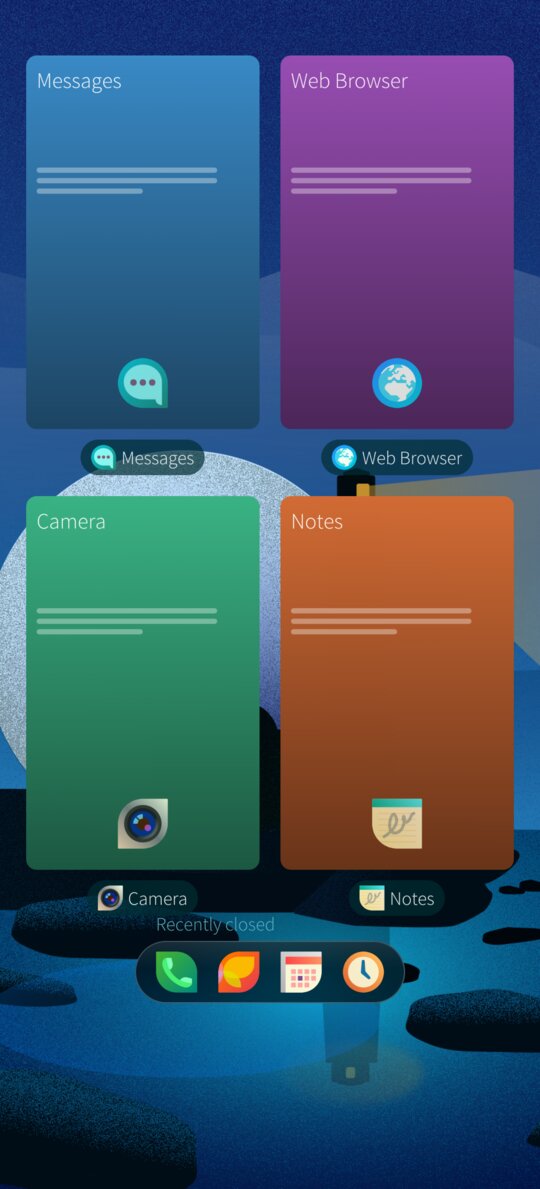
A pinch switches between the grid of covers and a row of cards, following your fingers.
In the card row the last app you used is in front. Pull a card up and the switcher shows the point of closing; let go before it and the card springs back.
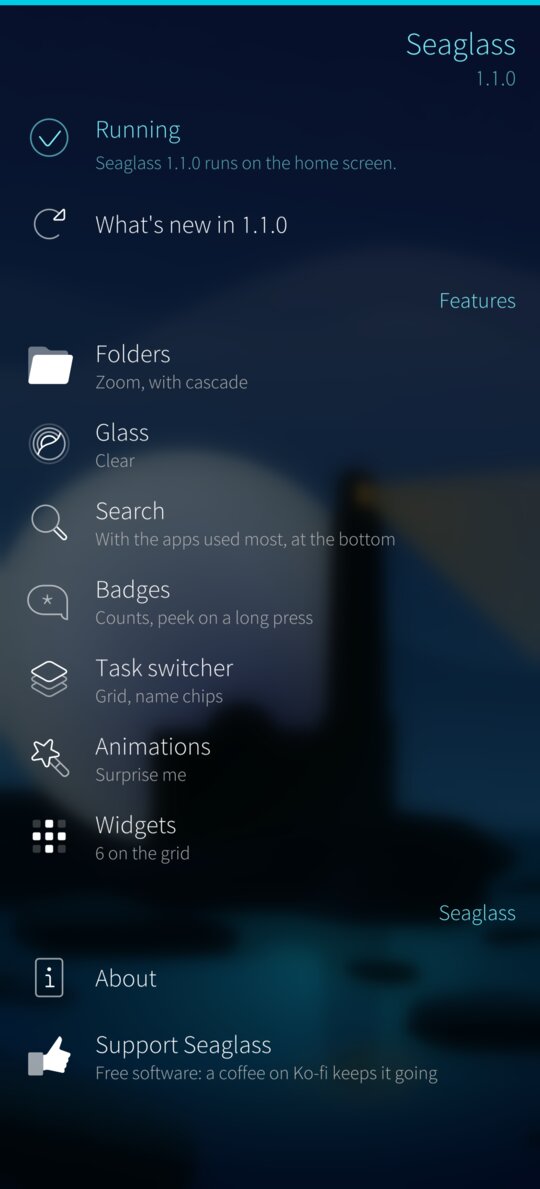
Tap Seaglass in Patchmanager for its settings. The first page says whether Seaglass runs, and what to do if it does not.
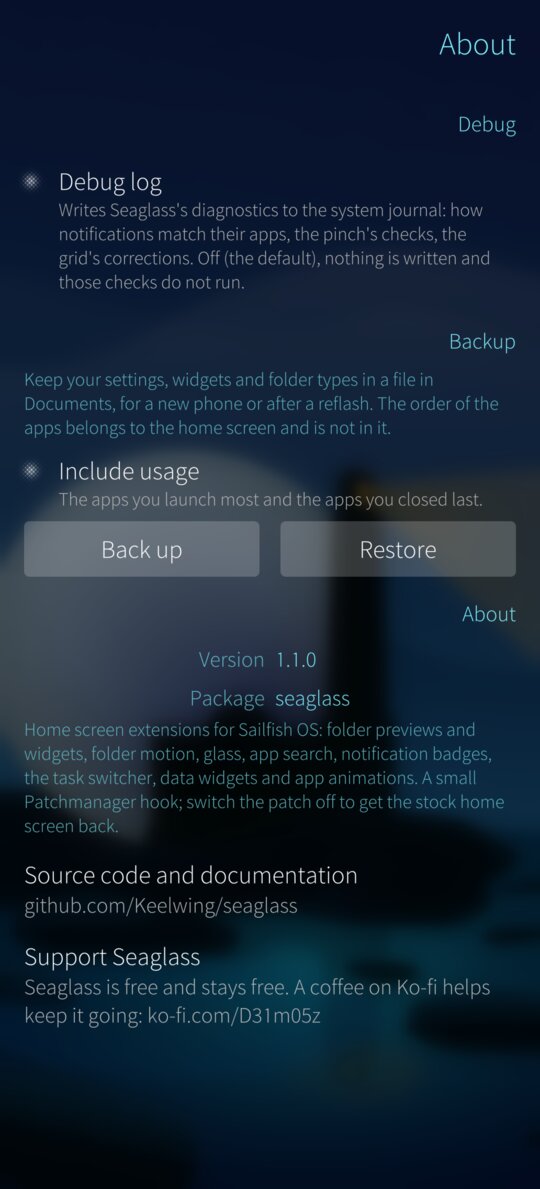
Each feature has a page of its own, several with a live preview, and changes apply at once. The pulley menu resets the settings or restarts the home screen, and About backs everything up to a file in Documents, for another phone or after a reflash.
You need Sailfish OS 5.2.0.22, 5.2.0.20 or 5.2.0.18. Everything else the package needs is part of Sailfish OS.
Seaglass is applied by Patchmanager 3.2 or newer. Install it from OpenRepos or Chum if you don't have it.
Download the RPM on the phone, then install it in a terminal:
devel-su pkcon install-local seaglass-1.1.1-1.noarch.rpmWithout a terminal, turn on Settings, Untrusted software, then open the downloaded RPM in the File manager and install it.
Open Settings, then Patchmanager, activate Seaglass, and let Patchmanager restart the home screen. Tap Seaglass there for its settings.
Seaglass patches the home screen of particular versions, so Patchmanager applies it only to the ones a release lists. Sailfish OS 5.1.0.11 and 5.0.0.78 have a testers' package, which CI checks but no such phone has run yet. After a Sailfish OS update, wait for a Seaglass that lists the new version. Compatibility
Install the new package the same way. It takes the patch out before the update and activates it again afterwards; then restart the home screen from Patchmanager's pulley menu. Updating
Deactivate Seaglass in Patchmanager, or remove the package with
devel-su rpm -e seaglass. Folders shown as widgets go back to being ordinary folders.
Reboot the phone if the app grid does not come up after activating. If the patch is active and nothing changed, the settings' first page says why. Troubleshooting
Each release has a SHA256SUMS file beside its packages on the releases page.
Tell what you see in an issue. Reports from phones other than the Jolla Phone, and from the older Sailfish OS versions, help most.
Seaglass never changes the home screen's files. Patchmanager adds a few lines that load our QML, and wherever it does not load, that part of the home screen stays stock. Removing the package takes the patch out first.
Seaglass reads only what the home screen and its Events view already read. It sends nothing anywhere, keeps its settings and launch counts on the phone, and writes nothing to the system journal unless you turn on the debug log.
Seaglass is under the GNU General Public License, version 3 or later. It is plain QML that builds without the Sailfish SDK, and every release is checked against each Sailfish OS version it lists.
Seaglass is made in spare time and tested on a Jolla Phone. If it makes your phone a little nicer, a coffee helps keep it going: new Sailfish OS versions, fixes and new features.